The COCOA BUBBLES V 1.2
– Introduction Manual –
Last Update:
The Cocoa Bubbles
V 1.2
– Introduction Manual –
This documentation is still a work in progress and will be updated with latest developments.
If you have any questions, problems or feature requests, please contact Tom or Wolf.
(To quickly jump to a section you can use the headings on your left side index, or on mobile click the “Index” button on your top left)
– We hope you Enjoy THE COCOA BUBBLES APP! –
Cocoa Bubbles INTRODUCTION
Cocoa Bubbles is a dedicated team management application designed to enhance visibility and control over project workflows within our company. Cocoa Bubbles aims to streamline project management by providing a clear, immediate view of Task priorities and statuses across various departments.
This tool introduces a novel way to visualize project management through the use of dynamic, interactive ‘bubbles’. Each bubble represents a macro category such as Operations, Sales, or Tech, providing a high-level view of tasks across different departments.
The Public HOME Page
The Home page at https://cocoabubbles.com/ serves as Public Landing Page for any outside visitors who might stumble upon this domain and The Cocoa Bubbles App.
The Home Page features several animated Bubbles with promotional links to the Cocoa Circle website, it’s products, recipes or general About Us information. This is meant to encourage outside visitors to explore other Cocoa Company sites of interest and leave from cocoabubbles.com, being an internal company tool only.
The MEMBERS LOGIN
For Cocoa Members:
The Cocoa Bubbles App can only be accessed with a valid login.
> Click the Cocoa Bubbles Logo in the footer to go to the official App Login!
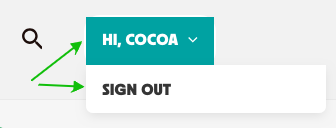
Once you are logged in you will see your Name on the top right members menu, and the dropdown menu provides the Sign Out option.
The COCOA BUBBLES APP
Once you log in to the Cocoa Bubbles app you arrive at the “All Tasks” page. This is the Cocoa Bubbles Default and “landing” page for logged in members. You can always return to it by clicking the Cocoa Bubbles Logo on the top left, or on the All Tasks Menu in the header navigation.
THE BUBBLES
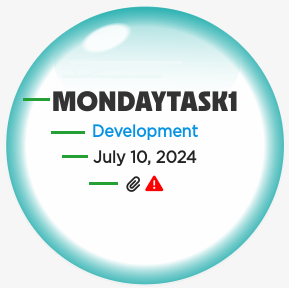
- Each Bubble represents a Task, in the Color of the Category this task was assigned to.
- Each Bubble shows the Task Title, the Task Category and the Task Deadline date.
- The Size of each Bubble corellates directly with the Task Importance Levels: “1 Lowest, 2 Low, 3 Medium, 4 High, 5 Highest”. (So the larger the Bubble, the more imortant the task.)
- If a Task’s Deadline is overdue then this Bubble will show a red Overdue Icon. (The app also offers several other views and filters to easily visualize pending or past Task Deadline Dates.)
- If a Task has an Attachment then the Bubble will also show an Attachment Icon.
The Task DETAILS VIEW
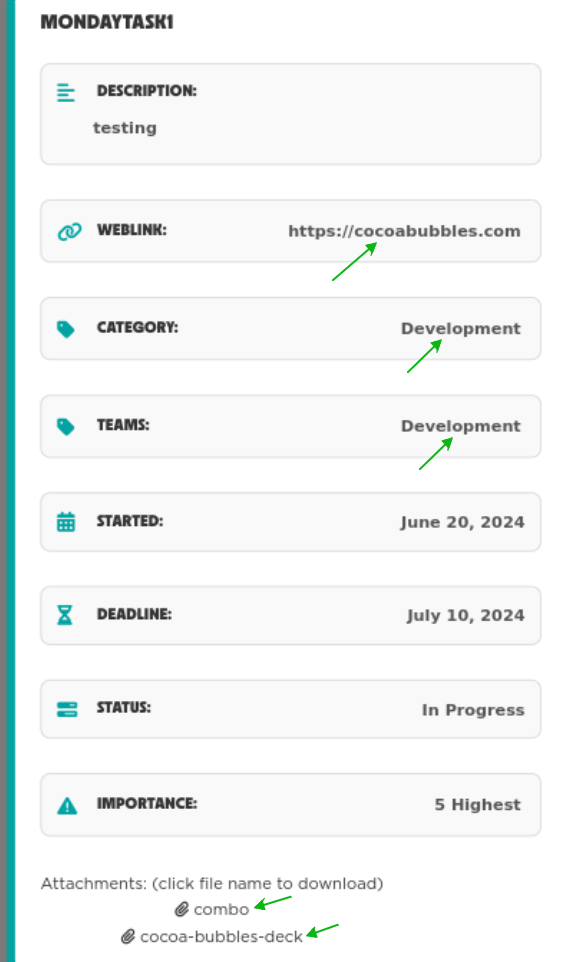
When you click on a Bubble a popup will show the Task DETAILS VIEW.
- The Color of the Task Details View matches the Category Color which the Task has been assigned to.
- Weblinks can be clicked and will take you to the specific URL.
- Categories can be clicked and will take you to the specific Category’s Tasks Bubbles page
- Teams can be clicked and will take you to the specific Team’s Tasks Bubbles page
- Attachments can be clicked and directly downloaded.
The App NAVIGATION
The app Header shows the Cocoa Bubbles Logo on the far left, and a Search icon, the signed-in Name and Sign-out option, to the far right.

The center of the header shows the app’s main Navigation Menu, with the top headings linking to the Categories page, the All Tasks and the Teams pages.
Each top menu also features several sub-menu items in it’s dropdown. (please see details for each sub-menu in the individual Sub-Menus sections further below, or you can also use the Quicklinks on your left side document navigation)
The ALL TASKS Page
The All Tasks page presents you with a floating Bubbles Overview of All Tasks in the system, from All Categories, All Teams and All timeline Dates or Deadlines.
On an average large screen there can fit around 30 task bubbles. If there are more tasks then that then a Pagination with page numbers will automatically appear on the bottom right of the Bubbles area, which allows you to load more tasks by page numbers.
The All Tasks SUB-MENU
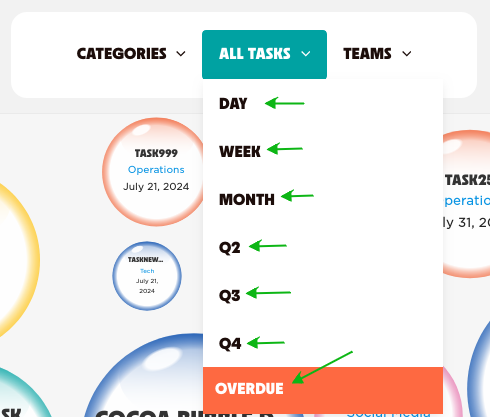
The All Tasks menu features several Sub-menus, which will each bring you to different pre-filtered Time line queries of Task Deadline Dates.
- DAY (shows all tasks which have a deadline TODAY)
- WEEK (shows all tasks which have a deadline this CURRENT WEEK – week starts with Monday)
- MONTH (shows all tasks with a deadline in the CURRRENT MONTH)
- Q2, Q3, Q4 (shows all tasks with a deadline within that Quarter of the year) … (Q1 can of course also be setup/shown)
- OVERDUE (shows ALL tasks which are currently OVERDUE)
The CATEGORIES Page
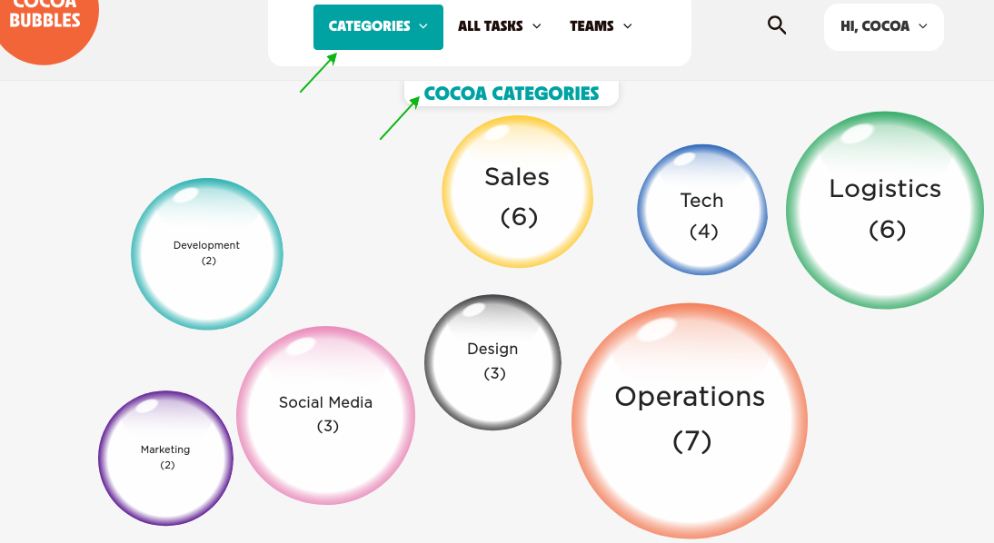
The Categories page shows a floating Bubble for each Category. (so those are not tasks but each represent a category)
Each Bubble shows the Category Title and the Number of Tasks currently assigned to that Category.
Each Bubble is in the Color of it’s Category, and it’s size changes according to how many important tasks it contains.
The Categories SUB-MENUS
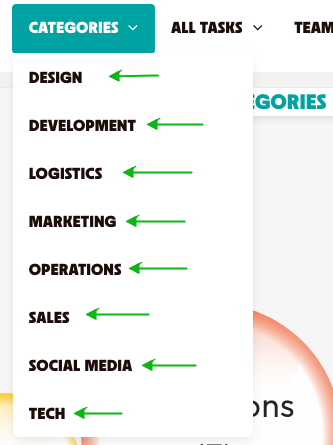
The Categories dropdown menu has several Sub-Menus, which show all the individual Categories, each linking to that Categories Tasks Bubbles Page, showing All Tasks assigned to that Category.
The TEAMS Page
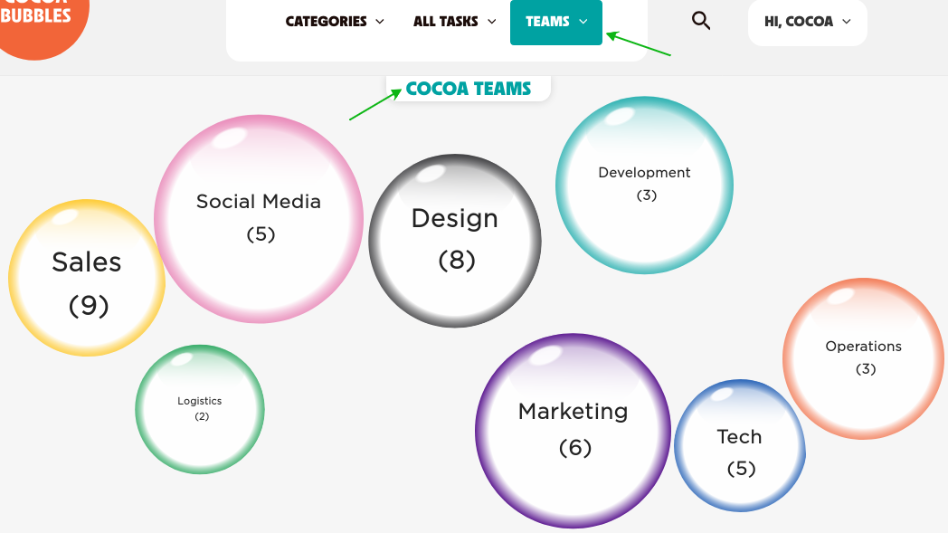
The TEAMS page shows a floating Bubble for each Team. (so those are also not tasks but each represent a team)
Each Bubble shows the Team Title and the Number of Tasks currently assigned to that Team.
Each Bubble is in the Color of it’s Team, and it’s size changes relative to how many important tasks it contains.
The Teams SUB-MENUS
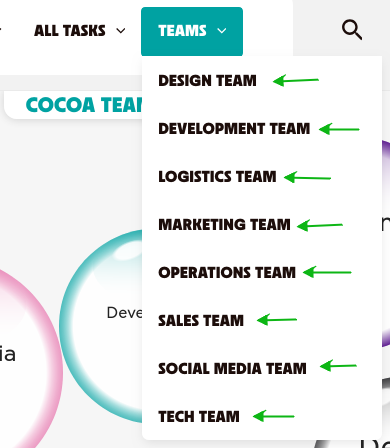
The Teams dropdown menu has several Sub-Menus, with each linking to the individual Team’s Tasks Bubbles page, showing All Tasks assigned to that individual Team.
The FILTERS Bar
For fast access every page also features a Filter Button (on the top left just below the logo). It enables you at any time to just quickly Filter tasks by a specific Time-range
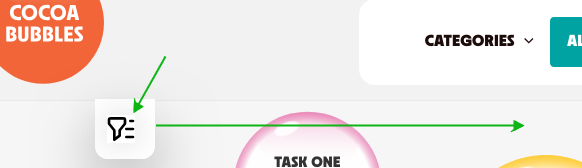
When you click the Filter Button, the FILTERS BAR slides out, giving you quick access to any of the indicated Time-range queries for Task Deadlines. Each button links to an individual Task Bubbles page, automatically showing only Bubbles within the specified time-range.

The Tasks LIST – TABLE View
Every page with a Bubbles View also features an additonal Tasks view below the Bubbles area.
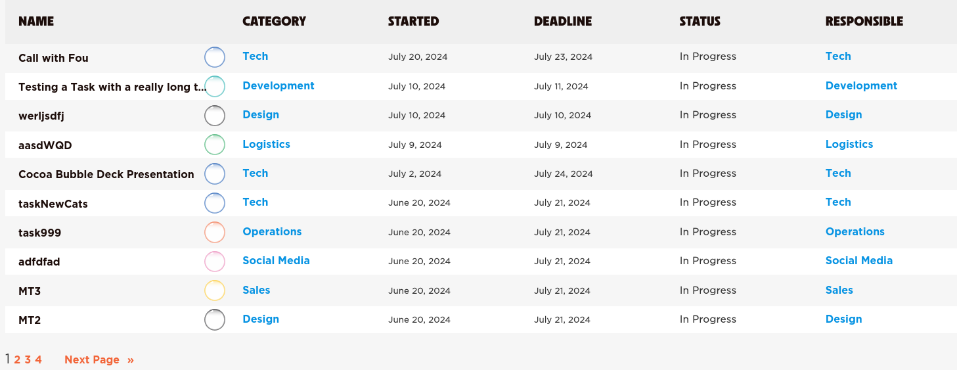
This view shows the latest Tasks information in a more conventional Rows and Columns, Table format.
You can click on each assigned Category or Team and it will take you directly to that specific Category‘s or Team‘s page.